TOConline Integration
ilink allows you to import documents issued in the TOConline software using its official API. This guide explains how to configure both systems to enable document communication.
Prerequisites
Before starting the configuration, please ensure that:
- You have an active TOConline account with the Business Owner profile and the Commercial Management module enabled.
- You have an active ilink account with integration management permissions.
- Both companies (in TOConline and in ilink) are registered with the same Tax Identification Number (TIN).
TOConline Configuration
1. Access the company
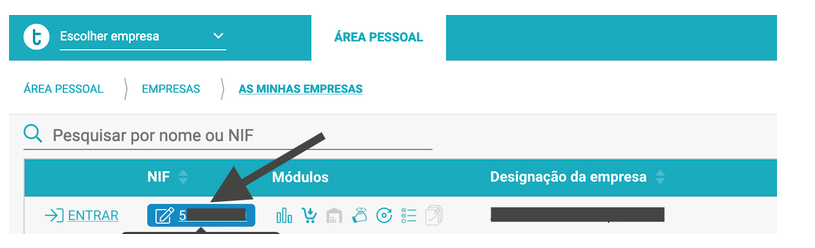
After logging in to TOConline, you will need to obtain the API access credentials. To do so, access the company using a Business Owner account by navigating to Personal Area > My Companies, and select the desired company.
2. Access API details
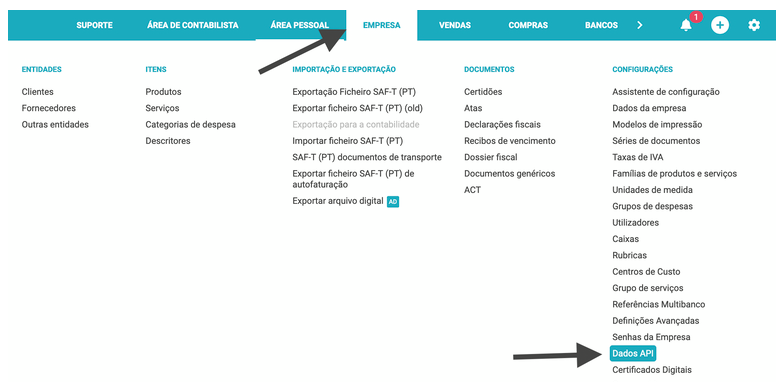
From the Company menu, go to Settings > API Details:
3. Request credentials
On the next page, enter the email address where you would like to receive the API access credentials.
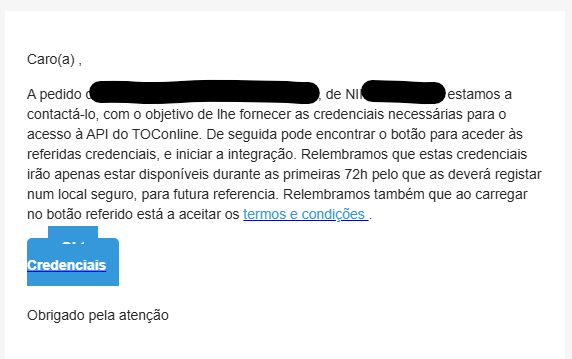
You will receive an email containing a link to access the credentials.
Warning: The link is valid for 72 hours. If it expires, you will need to repeat this step.
4. Configure the redirect URI
In the form received by email, enter the following URL in the Redirect URI Address field, replacing the original value, and then click the Save button, as highlighted in the image below:
https://ilink.pt/ilink-api/public/toconline/callback
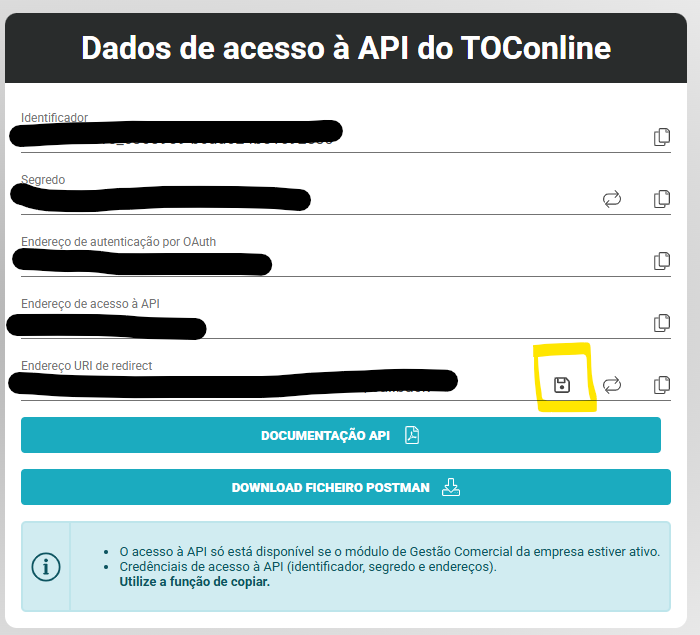
Tip: Use the "copy" buttons available in the TOConline form to avoid transcription errors.
ilink Configuration
After saving the changes in TOConline, log in to ilink and navigate to Integrations > Reception in the side menu:
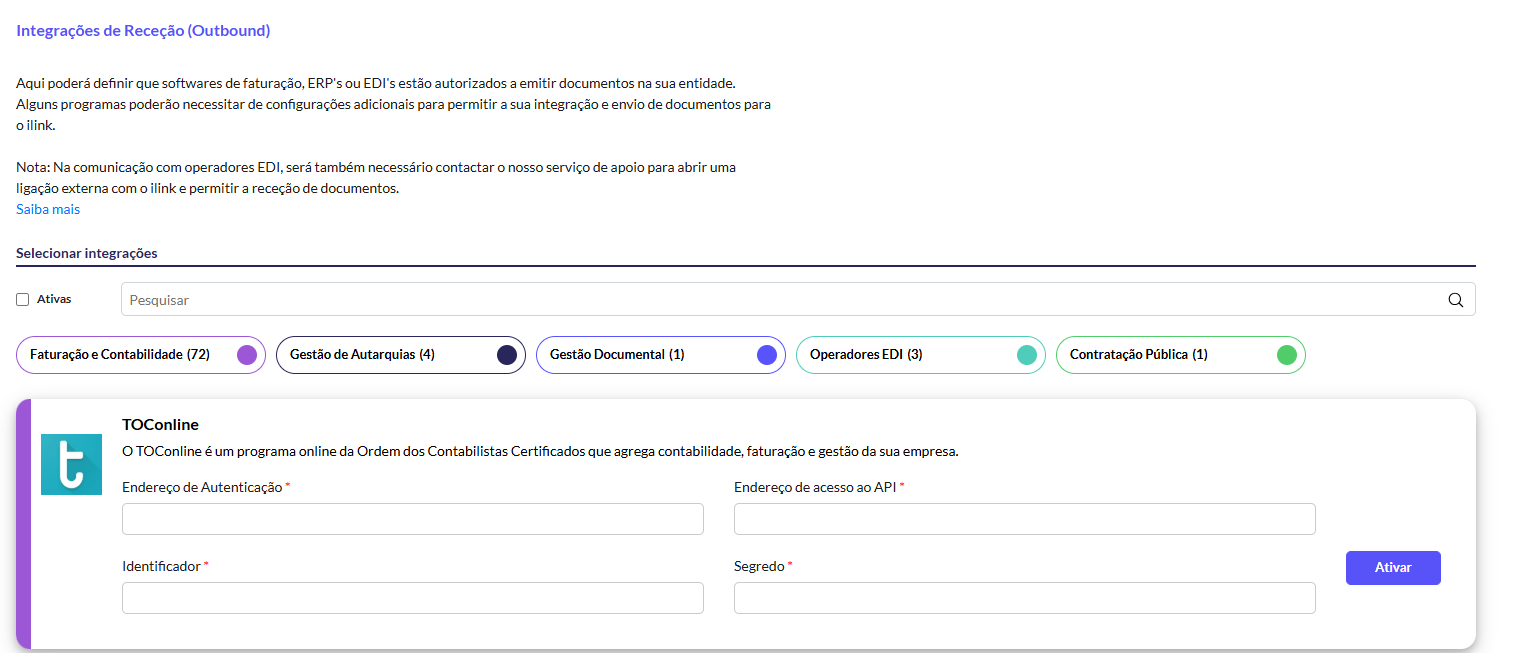
Locate the TOConline integration on the integrations page and fill in the following fields using the details obtained in the previous step:
- Identifier
- Secret
- API Access Address
- OAuth Authentication Address
Note: Both entities (in TOConline and in ilink) must have the same Tax Identification Number (TIN) for the integration to be created successfully.
Document Import
Once the integration has been activated, the TOConline option will become available in the Integrations menu. To import documents into the platform:
- Go to Integrations > TOConline.
- Select the documents you wish to import.
- Click Import.
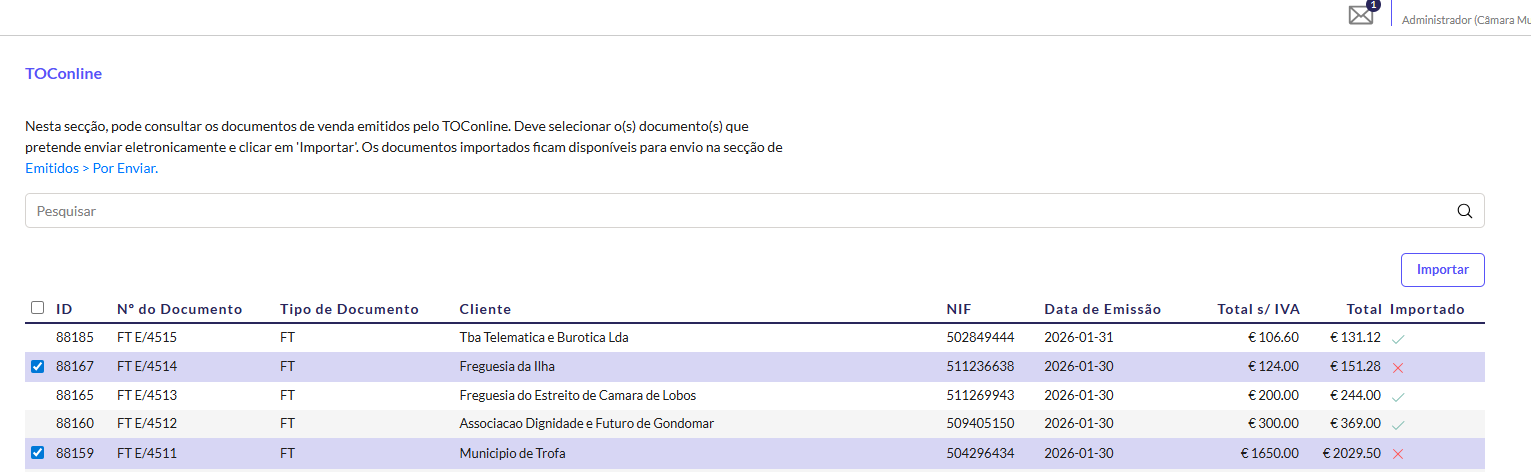
Tip: Use the search filters — Document No., Document Type, and Recipient TIN — to quickly locate the desired documents.
Imported documents will be available under Issued > Pending to Send, where you can confirm the details or edit values before sending them electronically to the recipient.
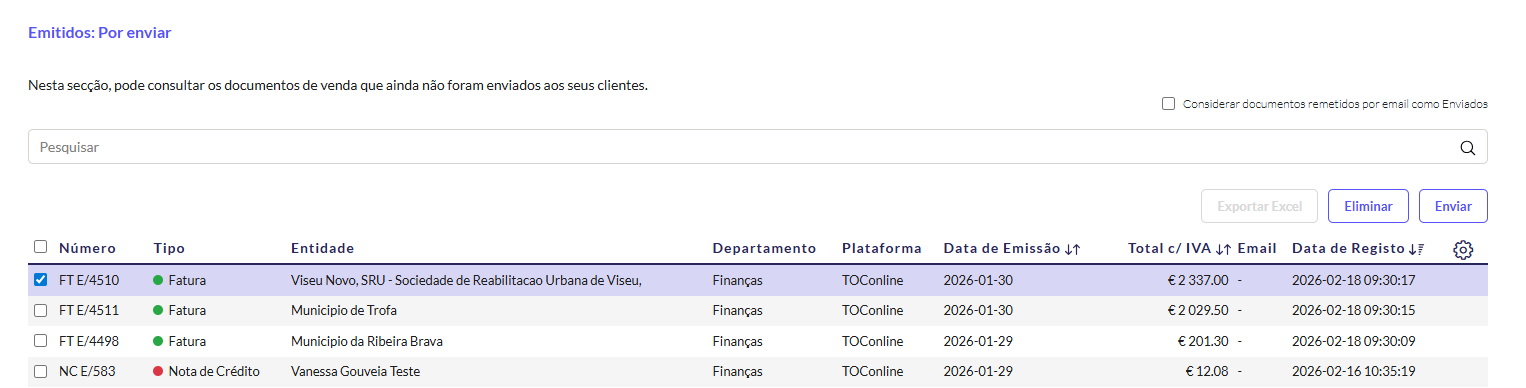
Note: If errors occur during the import process, you can review the integration logs under Integrations > Integration Logs to diagnose any potential issues.
Public procurement fields
To issue electronic invoices in ilink with public procurement data, you must fill in the following fields in the document header in TOConline:
- Our reference: enter the order number
- Your reference: enter the commitment number
Note: EDI field mapping in TOConline is not considered in iLink. To ensure the information is sent correctly, you must use the fields indicated above.